What are Snapchat Highlights?
Highlights are Stories that the owner saved to the profile so they do not disappear after a day. Each Highlight has a title (and often an emoji) and keeps its snaps in the original order. They are the archive of a public profile: in our test one creator had 18 Highlights, from a single snap to more than 40, and a sports league had 16, some with hundreds of snaps.
Which browser works on iPhone?
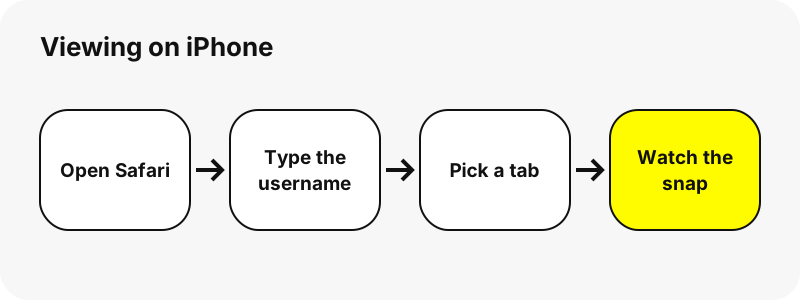
Safari works; any up-to-date browser that plays MP4 video does. SnapViewer is a web page, so there is no iPhone app to install and nothing asks for your Snapchat login.
What can you see?
Every saved Highlight of the profile, with its title and cover. Pick one to see its snaps in order and play them in the page.
Tips for Highlights on iPhone
- Pick a Highlight by its title in the row of round covers.
- Each Highlight lists up to 40 snaps; the page says when there are more.
- Highlights do not expire, so a link to one keeps working.
- A snapchat.com/@name/highlight/ link opens that Highlight directly.
What can you never see?
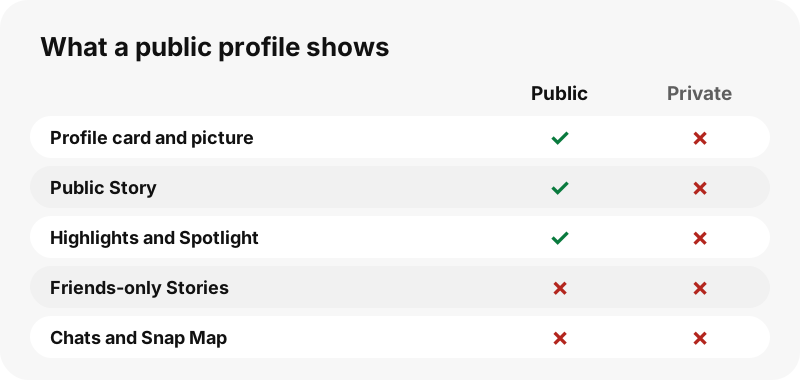
These stay private on Snapchat, and no website can show them without the owner's account:
- Private accounts and friends-only Stories
- Chats, Snaps sent to friends and Memories
- Location (Snap Map) and friend lists
- Who else viewed a Story
How much data does it use?
In our tests a 10-second Highlight video was 721 KB. Thumbnails load first; a video only downloads when you press play.
Can you save what you watch on iPhone?
Yes, each snap has a Download button. The file lands in Files › Downloads. The full steps for saving are on Download Snapchat Highlights on iPhone.
| Question | Answer on iPhone |
|---|---|
| Browser | Safari |
| Where the file lands | Safari saves downloads to the Downloads folder of the Files app (Files › Browse › Downloads), according to Apple. |
| Opens with | Files previews it; touch and hold › Open With to choose another app |
How do you find a saved snap on iPhone?
Right after a download, tap the Downloads button next to Safari's search field to see the file.
Photos and videos you save from Safari appear in Photos › Recently Saved. A file downloaded as a file stays in Files; touch and hold it and choose Open With to pick the app that should open it.
| Question | Answer on iPhone |
|---|---|
| How to see it | Right after a download, tap the Downloads button next to Safari's search field to see the file. |
| Change the folder | Settings › Apps › Safari › Downloads: choose iCloud Drive, On My iPhone or Other. |
How does the viewer look on iPhone?
On an iPhone-sized screen (390 px wide in our tests) the snaps sit in two columns and the tabs scroll sideways. A video plays inside the page instead of opening a separate player, so you can keep scrolling to the next snap. The Paste button reads the clipboard only when you tap it, and Safari may ask you to confirm the paste first.
Does the account owner see you?
SnapViewer reads the public page from our server without logging in, so your Snapchat account is never used and your name is not shown to anyone. The previews themselves load from Snapchat's servers, which see a normal web request, as for any public page.
What if nothing shows up on iPhone?
- Not every public profile has Highlights; the tab is greyed out when there are none.
- If a Highlight link fails, open the profile by username and pick the Highlight from the list.
- Refresh the page and try again; Snapchat sometimes does not answer at once.
- Make sure Safari is up to date so MP4 playback works.
If Safari is set to save to iCloud Drive, the file appears in iCloud Drive › Downloads instead of On My iPhone.
What else can you save on iPhone?
Which other devices are covered?
Other tools
Frequently asked questions
Can I view Snapchat Highlights on iPhone without an account?
Yes, if the profile is public. Open the page in Safari, type the username and the public content appears. Private accounts cannot be viewed.
Do I need the Snapchat app on iPhone?
No. Everything runs in Safari. You only need the app to post or to see friends' private Stories.
Will the person know I looked?
SnapViewer never logs in, so your account is not used. We cannot see what Snapchat itself records about requests to its servers.
Can I view a private account on iPhone?
No. No website can do that honestly; pages that promise it are a red flag.
Is SnapViewer part of Snapchat?
No. It is an independent tool and is not affiliated with Snap Inc.
Can I download what I watch?
Yes. Each snap has a Download button; the file lands in Files › Downloads.
Are Highlights the same as Stories?
Highlights are Stories the owner saved to the profile; they stay until the owner removes them.
Can I open one Highlight from a link?
Yes. A snapchat.com/@name/highlight/ link opens the profile on that Highlight.
Guides
Highlights — Browse the saved Highlights of a public profile, snap by snap.
Sources
- Find your downloads on iPhone or iPad — Apple
- Find your downloaded files on iPhone — Apple
- Customize your Safari settings on iPhone — Apple
- Find recently saved photos and videos on iPhone — Apple
- Find and view files and folders in Files on iPhone — Apple
- Download a file (Chrome on iPhone and iPad) — Google
- Media container formats: MPEG-4 (MDN) — MDN